
I remember sitting in a windowless logistics office three years ago, staring at a screen while a “revolutionary” new platform crashed for the third time in twenty minutes. We weren’t even having a real meeting; we were just fighting with a buggy interface and waiting for a loading bar that refused to move. Most companies think they need the most expensive, feature-heavy video conferencing tools on the market to stay competitive, but that’s a lie. All that extra bloat just creates digital friction that eats your focus and kills your momentum.
I’m not here to sell you on some shiny, enterprise-grade ecosystem that requires a week of training just to unmute yourself. I’ve spent way too much time testing these platforms to know which ones actually work and which ones are just expensive noise. In this guide, I’m stripping away the marketing fluff to show you the few tools that actually respect your time and your bandwidth. We’re going to find a setup that stays out of your way so you can actually get your work done and get off the call.
Table of Contents
- Cut the Noise With High Definition Video Call Quality
- Ditch the Lag Real Time Screen Sharing Features That Actually Work
- Stop Overcomplicating Your Meetings: 5 Ways to Actually Make Video Calls Productive
- The Bottom Line: Stop Overcomplicating Your Meetings
- The Productivity Trap
- Stop Overcomplicating Your Setup
- Frequently Asked Questions
Cut the Noise With High Definition Video Call Quality

Look, there is nothing that kills a meeting faster than a grainy, pixelated screen where you’re squinting just to see if your colleague is actually nodding or just frozen in a lag spike. If you’re trying to build trust or walk someone through a complex spreadsheet, you can’t do it through a digital smear. I’ve spent too many hours in startup meetings where the audio cut out right as someone was making a crucial point. You need high-definition video call quality that actually holds up, even when your bandwidth isn’t perfect. If the visual feed is trash, the entire conversation becomes a mental chore.
It’s not just about looking sharp, though. When you’re using enterprise video meeting platforms, the tech needs to stay out of your way. I want to jump into a call, see a crisp image, and immediately pivot to real-time screen sharing features without the software choking on the transition. If the tool requires a massive amount of troubleshooting just to get a clear picture, it’s adding noise, not value. Keep the resolution high and the friction low.
Ditch the Lag Real Time Screen Sharing Features That Actually Work
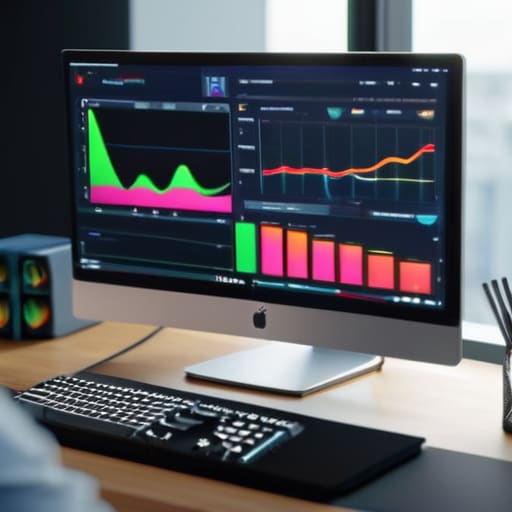
There is nothing that kills a workflow faster than trying to walk someone through a spreadsheet or a new dashboard only to have the screen freeze mid-click. I’ve spent enough hours in startup meetings watching a colleague’s cursor stutter across a pixelated mess to know that real-time screen sharing features aren’t just a “nice to have”—they are the backbone of actual collaboration. If you’re stuck in a loop of “Can you see my screen now?” or “Wait, it’s still loading,” you aren’t working; you’re just performing digital theater.
When I’m testing enterprise video meeting platforms, I look specifically at how they handle high-bandwidth tasks. A decent tool shouldn’t just show a static image; it needs to transmit fluid motion and sharp text without eating up your entire CPU. I don’t care how many bells and whistles a platform has if the latency makes a simple walkthrough feel like a slideshow. If the software can’t handle a smooth, low-lag stream, it’s just more noise in my day. Pick something that prioritizes stability over flashy animations.
Stop Overcomplicating Your Meetings: 5 Ways to Actually Make Video Calls Productive
- Stop the “can you hear me?” dance by investing in a decent external mic. If your audio is choppy or muffled, your team isn’t listening to your ideas; they’re just struggling to decipher your words.
- Audit your meeting stack. If you have Zoom, Teams, and Google Meet all running in the background, you’re just burning RAM and mental bandwidth. Pick one ecosystem and stick to it so you aren’t hunting for links every ten minutes.
- Use the “camera-off” rule for internal syncs. Not every quick check-in needs a high-def video feed. Constant eye contact is exhausting and leads to Zoom fatigue; save the cameras for client calls and actual presentations.
- Master the keyboard shortcuts. If you’re clicking through menus just to mute yourself or share your screen, you’re wasting seconds that add up to hours over a month. Learn the hotkeys for your specific tool and stop the manual clicking.
- Force a “no-agenda, no-meeting” policy. A video call without a clear goal is just a glorified, inefficient chat. If there isn’t a specific outcome you’re aiming for, send a Slack message instead and reclaim your time.
The Bottom Line: Stop Overcomplicating Your Meetings
Prioritize stability and low latency over flashy features; a tool that lags during a screen share is a useless tool, no matter how many emojis it has.
Look for seamless integration with your existing stack so you aren’t wasting ten minutes every morning just trying to get everyone into the same digital room.
Choose high-fidelity audio and video to reduce the mental fatigue of “listening harder”—if you’re struggling to hear people, you’re losing productivity.
The Productivity Trap
Most video tools are just expensive ways to feel busy while actually burning you out; if a platform adds more friction to your meeting than it solves, it’s not a tool, it’s just digital clutter.
Mateo Salcedo
Stop Overcomplicating Your Setup

Look, we’ve covered a lot, but the takeaway is simple: stop chasing every shiny new feature that promises to revolutionize your meetings. Whether you’re looking for crystal-clear HD video to avoid that awkward “can you hear me?” dance, or you need screen sharing that doesn’t freeze the second you try to show a spreadsheet, the goal remains the same. You need tools that actually perform under pressure. Don’t get distracted by the bells and whistles that just add friction to your workflow. Focus on stability, low latency, and a UI that doesn’t require a manual to navigate. If a tool doesn’t solve a problem or save you five minutes of troubleshooting, it’s just digital clutter.
At the end of the day, video conferencing is just a means to an end. It’s a way to connect, collaborate, and move projects forward so you can actually get back to your real work. Don’t let your tech stack become a second job. Pick a reliable tool, build a consistent workflow, and then close the laptop. The best system isn’t the one with the most integrations; it’s the one that disappears into the background and lets you get things done.
Frequently Asked Questions
How do I stop these apps from eating up all my RAM while I'm trying to run other programs?
Look, if your video app is eating 4GB of RAM just to sit there, it’s a resource hog. First, kill the hardware acceleration in the settings—it sounds counterintuitive, but it often prevents the app from fighting your GPU. Second, stop using the desktop client if you don’t need it; the browser version is usually way lighter. And for the love of god, close those extra tabs. If you aren’t using it, kill the process.
Is it actually worth paying for a premium subscription, or am I just paying for fancy features I'll never use?
Look, I’ve seen too many startups burn through cash on “Enterprise” tiers just for the sake of it. Most of the time, you’re paying for security protocols and admin controls you won’t touch. Unless you’re managing a team of fifty or need heavy-duty integration with your existing stack, stick to the free or pro versions. Don’t pay for a suite of bells and whistles if a simple, stable connection is all you actually need.
Which tools actually handle low-bandwidth connections without turning everyone into a pixelated mess?
If your internet is acting up, stop trying to force high-def video; it’s just going to kill your connection. I’ve found that Zoom is still the king here because its adaptive bitrate tech is actually decent at prioritizing audio when the bandwidth dips. Google Meet is a solid runner-up since it runs in the browser and feels lighter. Honestly, if things get really bad, just kill your video and stick to audio-only. It beats a pixelated mess every time.
